The HPDir Project
Why and how
There are two main reasons for the HPDir program:
- Binary images of HP 9845 media have to be handled in order to create, duplicate and initialize image files, and to maintain all the files which are stored in the binary image.
- Original vintage mass storage peripherals and media shall be controlled, read and written directly from a PC without any other vintage system involved.
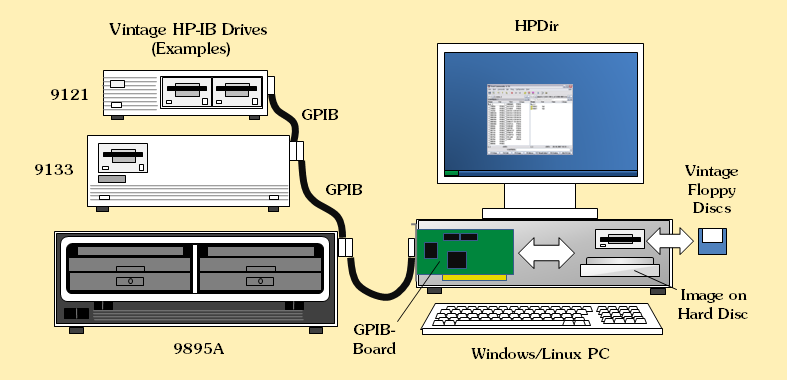
Typical HPDir Setup
The HPDir program is much like a swiss pocket knife for vintage HP drives, media and data. It is able to list the contents of file systems and to extract files from drives connected via HP-IB, files included in binary images and files from old non-standard HP floppy disks. It can convert files from one file to another, including the conversion of data and program files, so that they get readable and editable on a PC. It can dump sector-by-sector images from HP-IB drives or floppy disks in order to archive the original media content. It can also restore original media from these images. It can initiate diagnostics on the HP-IB bus, on drives connected via HP-IB bus or on vintage floppy media. It works both with 9845 and LIF file systems, handles hard disk drives as well as tape drives and supports access to non-standard floppies in standard PC floppy disk drives. For vintage HP drives it supports all the AMIGO and the CS/80 or SS/80 command sets. And it can be used to prepare images for the HPDrive program, an HP-IB mass storage emulator.
Also see another program, the HPDrive utilitiy for emulating vintage hard drives on a PC in the HPDrive Project section. Also see the HP-IB Tutorial for more information on the HP-IB.
Background: The HP 9845 File System
When designing the 9845, HP developed a new concept they called the "unified mass storage model". Before the 9845, HP experimented with mass storage concepts which were more or less media-centric. For example a standard format for tape drives was created, the so-called SIF (Standard Interchange Format), which was not really portable to other types of media. With the 9845, HP wanted to create a system where most mass storage routines could be implemented independently from the underlaying hardware and media. This would not only have the advantage of re-usable code, but also simplified data transfer from one media to another and provided a standardized user interface for mass storage operations.
This concept did fit well into the hardware concept of the HP 9845, which was very generic, too. The file structure is almost the same for all peripherals. The basic entity is the record, a 256 byte block of data. The generic view on mass storage is in principle just that of a linear seqence of records, starting with record zero. This is similar to the view on modern disk drives with their Logical Block Address (LBA) scheme.
In fact the 9845 file system was identical to that of the HP 250/260 integrated multi-user computer system. The HP 250 had been developed in Fort Collins/Colorado, where also the HP 9845 was born, and adopted many of the concepts of the HP 9845, including the hybrid processor and, of course, the file system format.
The HP 9845 file system is based on different areas on the medium: a single system record, a file directory, an availability table and the area where the file data is stored. The system record is always the first record on each media. File directory and allocation table follow the system record and can be doubled with a spare directory and allocation table. The file data area follows the allocation table, or, if directory and allocation table are mirrored, the spare allocation table.
The system record consists of a 'magic' identification word which marks the system under which the medium had been initialized (always $0500 hexadecimal for HP 9835 and HP 9845), some information about the disk geometry, the position of the directory table and the allocation table, the position of the last record of the allocation table, the number of system and data tracks and the interleave factor of the drive. Since the linear record scheme is independent from the the drive geometry or the interleave factor, this data is more or less bonus information.
Compared to modern file systems like FAT32 or NTFS the 9845 file system is very simply structured. All files are situated in the root directory, subdirectories are not supported. All file names are restricted to 6 characters maximum, and are case sensitive.
File data can't be fragmented, all data associated with a file must be in a continuous storage area. The availability table doesn't identify the records which belong to a certain file (as FAT does), but rather describes the free "holes" between the files. Each entry in the allocation table identifies position and length of one continuous free block on the medium. The last entry in the allocation table is followed by an end marker ($FFFF hexadecimal).
Each entry in the directory table holds the file name, the file position and length, the logical block size (also known as defined record size), the file type and a protection attribute. Again, the last directory enty is followed by an end marker.
Here is the structure of the HP 9845 disk file system in detail:
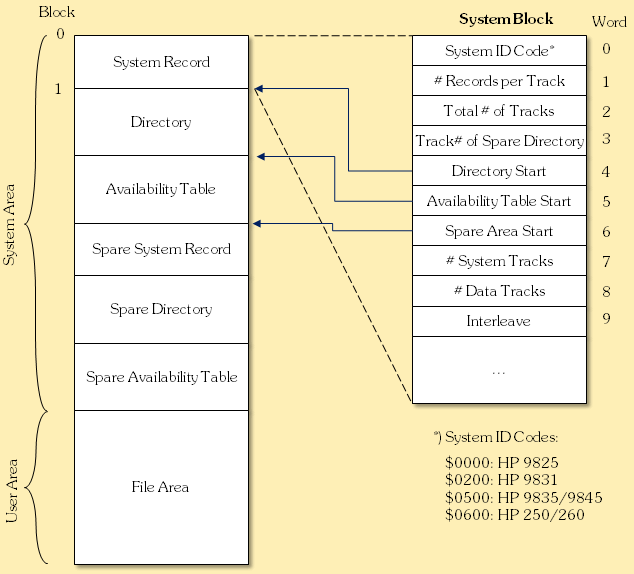
HP 9845 Disk File System Structure
This structure is used for all disk media (both floppy and hard disk). The tape cartridge version of the HP 9845 file system differs a little bit: due to the limited space all the file information is stored compressed in directory entries of just 12 bytes or 6 words. And there is no system record, instead the first record is unused (filled with zeros) and the directory starts with the 'magic' word. The tape file system does provide a spare directory, but no allocation tables.
Here is the structure of the 9845 tape file system in detail:
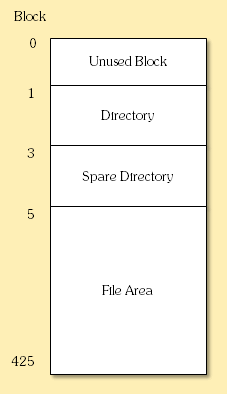
HP 9845 Tape File System Structure
The 426 blocks have all a size of 256 bytes and spread along two tracks (block 0 to block 212 on track 0, blocks 213 to 425 on track 1). As mentioned above, the tape file system doesn't have a system block or allocation tables. Instead, the first record is kept unused (probably for reliability reasons) and filled with zeros. The directory starts with a $0500 marker, followed by the first directory entry. The directory occupies 2 blocks or 512 bytes. Each directory entry uses 6 words or 12 bytes, so the directory has room for up to 42 file entries. The directory is followed by an identical copy which is used as spare directory in case the first directory has errors.
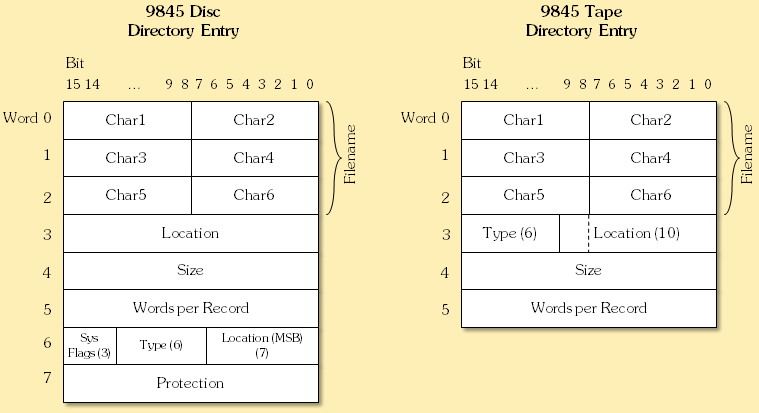
HP 9845 Disk and Tape Directory Format
The Sys Flags were set according to the system on which the entry was created: 1=HP9835, 2=HP9831, 3=HP250/260, 4=HP9845A, 5=unused, 6=HP9845B/C. The Location MSB was in fact used only with drives storage greater than 16 MB.
The fact that the HP 9845 file system did not allow fragmented files made it hard to use dynamically allocated files which grow with the amount of data that is written to the files. Another disadvantage was that each time a file was purged, it produced a 'hole' of free storage. The hole could be later on used by another file, but since the new file generally had another size, more and more storage was wasted during long term use. However, utilities were provided in order to re-pack the files in a HP 9845 file system.
In contrast to MS-DOS or Windows, files are not typed by file extension but through a file code which is stored in the directory entry. The files in a HP 9845 file system belong to either of the following types:
| File Type | File Type Code* | Purpose |
| BKUP | 0000 | File type for backups (used with the DBMS ROM) |
| DATA | 0400 | General pupose data container (this is the standard data file type for BASIC programs, and as well used for portable BASIC programs saved in ASCII format) |
| PROG | 0800 | Standard file type for storing BASIC programs in a compact, but system specific format |
| KEYS | 0C00 | File type for saving special function key definitions/macros |
| BDAT | 1000 | File type for packed binary data as used by the FREAD and FWRITE statements (available with the Mass Storage ROM) |
| ALL | 1400 | File type for saving complete system dumps (including loaded programs, variables, key definitions, binary routines, and display content) |
| BPRG | 1800 | File type for saving binary routines (all currently loaded binaries are saved into one file) |
| OPRM | 1C00 | General purpose container for all other option ROMs, the data structure is defined by the option specific ROM (note: the object code file produced by the assembler is of this type when stored on tape instead of disk) |
| ROOT | 1C80 | File type for data base root file (same code as ASMB above, used with the DBMS ROM) |
| DSET | 1D00 | File type for data base file containing a data set (used with the DBMS ROM) |
| WORK | 1D80 | Use unknown |
| ASMB | 1E00 | File type for saving object code routines produced with the Assembly Execution and Development ROM |
| FORM | 1E80 | Use unknown |
| TEXT | 1F00 | Use unknown |
| TYP1 | 1F80 | Use unknown |
*hexadecimal result of masking word 6 in disk directories with hex 1F80. File type codes for tape directories are the same, however only the high byte is used as a single byte code.
For the object code files of the Assembler Execution and Development ROM, the handling differs slightly between disk and tape storage. They are stored on disk as type ASMB, and on tape as type OPRM.
Special HP 250/260 note:
The HP 250 and HP 260 added some extensions to the file system described above, for instance volume labels or pointers for an on-disk hardware diagnostic program. CS/80 devices, which could provide 300 MB and more of mass storage, were initialized with 32 bit allocation table values instead of 16 bit as used by the 9845 file system (= 4 16-bit words per entry instead of 2 words). An additional flag in word 13 (the DA flag) indicated which values were used for the allocation table. HPDir looks at this flag and handles HP 250/260 file systems appropriately. Also, if the system is selected as HP 250/260, CS/80 and SS/80 drives are automatically initialized with 4-word availability table entries.
Special HP 9825 note:
The 9825 file types are usually denoted B, D, K, M and P instead of BPRG, DATA, KEYS, ALL and PROG, respectively. Also there is a special type O, which denotes file types which don't have a meaning for the 9825, e.g. because they have been created on a 9845 system as BDAT file. Please note that when using HPDir with a 9825, currently the 9845 keywords for file types have to be used (i.e. DATA instead of D) when specifying the desired file type.
Background: The LIF File System
The Logical Interchange Format, or LIF is probably one of the least documented file systems ever, although this proprietary file system (which was introduced by HP during the late 70's, I think the first systems which used this format were the Series 80 computers) was targeted as a completely device independent, easy to implement exchange format, especially for pocket calculators like the 41C. This file system format was broadly used especially by HP's later computers, calculators and instruments, and it is still supported by HP-UX, but it never left the world of HP.
The roots of LIF seem to go back to the HP 9845 file system format as they share most restrictions. The most important refinements were a six-character volume label (similar to MSDOS), a maximum file name length of up to 10 characters, a time stamp and a free purpose field, which could add application specific data. Just like the HP 9845 file system format, LIF did not allow subdirectories or the fragmentation of file data. LIF uses both the linear record scheme and a system record for general file system information, but neither uses spare directories nor allocation tables. For the identification of suitable free storage areas, the complete directory had to be scanned.
Here is the structure of the LIF file system in detail:
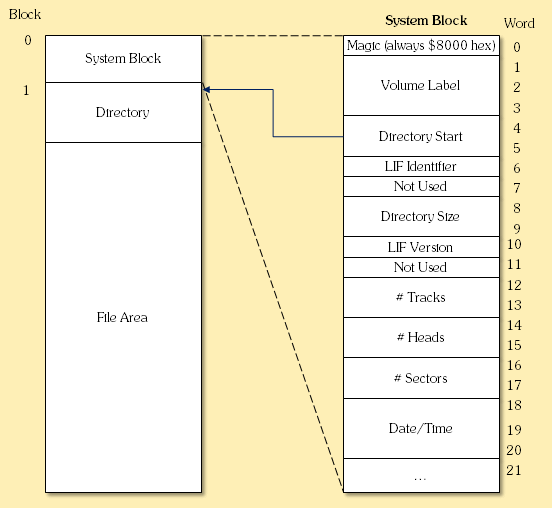
LIF File System Structure
For some systems the LIF filenames are case senstitive, for others not. File types are system dependent, there is no general rule how the file types are encoded, except that code 0 denotes plain ASCII files. Most common file types were plain ASCII, binary data (BDAT) and binary programs (BPRG). The only file type, which can be used by all systems was plain ASCII. This file format was used in all cases where portability was important. Unfortunately, the HP 9845 DATA format is not compatible to the LIF ASCII format.
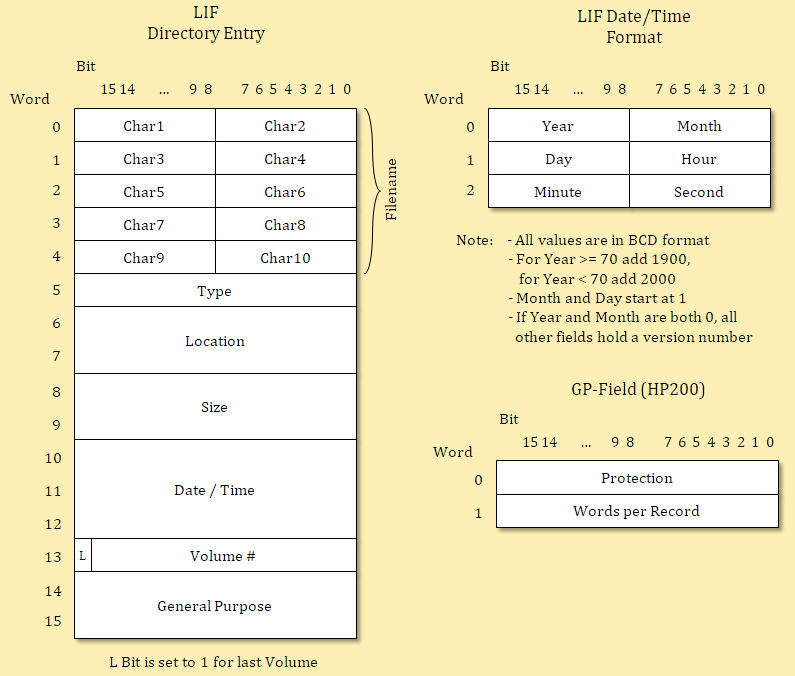
LIF Directory Format
The General Purpose field is something special. There are probably no two systems which use this field in the same way. Due to the lack of documentation, only a few definitions of that field are known.
The Type field holds a 16-bit value which provides information on the type of the file. In contrast to e.g. FAT or NTFS, the file type is not determined by the file name extension, but rather part of the file node meta data, so that file names may be chosen without consideration for the usage of the file. The possible range of hex 0000 to FFFF had been divided into ranges, which again have been assigned to HPs development & manufacturing divisions (which again had been responsible for certain products):
0x0000-0x7fff: General purpose
0x8000-0xdbff: unused
0xdc00-0xdfff: CSD (64000)
0xe000-0xe3ff: CVD (Series 80)
0xe400-0xe7ff: DTD (Terminals)
0xe800-0xebff: 9845/9835, 98X6, 500
0xec00-0xefff: HP250/260
0xf000-0xf3ff: HP1000
0xf400-0xf7ff: HP3000
0xf800-0xfbff: HP300
0xfc00-0xfffe Special interdivisional file types
So the MSB can be used nicely to determine the system the file has been originally intended for. The LSB then describes the specific file type for that system, which in general is system dependent. As an example the 16-bit code for a PROG file (code 0x20) for a Series 80 computer (code 0xE000) works out to 0xE020. HPDir offers a convenient way to specify both system and type information without having to know the 16-bit code with the -s and -t optons, e.g. -s SE80 -t PROG for the above example.
The most comprehensive description of LIF probably can be found in the HP64000 floppy reference manual. See here for a LIF specification excerpt from that manual.
There have been different tools provided for handling LIF disks. Still quite useful are the LIF Utilities for DOS from HP. The LIF utilities support the handling of LIF floppy disks in standard PC floppy disk drives and drives connected via HP-IB similar to the HPDir program. A DOS-based graphical user interface covers functions like initializing LIF disks, copying files from DOS to LIF and vice versa, purging files as well as editing LIF disks with a hex editor. The LIF Utilities work under DOS and Windows 9x, but not under NT based Windows like XP or Vista. The HP-IB operation is restricted to HP's own HP-IB interface cards (namely the HP82335A, the HP82990A and the HP88500A interfaces) and can communicate only with drives supporting the CS80/SS80 command sets. Drives based on the AMIGO command set are not supported, neither are non-HP IEEE488/GPIB controllers. The LIF Utilities are available for download from keysight.com (look here for download). The manual for this software can be separately downloaded here.
Another LIF tool, also provided by HP, are the Standard Data Format (SDF) Utilities. Although originally intended for the exchange of data with HP analyzer instruments, there are two programs included (LIF.EXE and LIFDIAG.EXE) for LIF access, file conversion and diagnostics. Just like the LIF Utilities those programs allow initializing LIF disks as well as file copying, deletion, conversion and listing both using standard floppy disk drives and drives connected via HP-IB. The SDF utilies support the SS80, but not the AMIGO command set. However, in contast to the LIF utilities those programs support the PCII and AT-GPIB IEEE488/GPIB cards from National Instruments in addition to the HP88500A and HP82335 interfaces. The SDF Utilities are also available for download from keysight.com (look here for download).
Tony Duell's LIF Utilities for Linux are more intended for the handheld HP calculators/computers like the 41C or the 71B, but provide useful routines for LIF disk access or file conversion under Linux. More about this utility collection can be found at hpcc.org (look here).
Finally, there is still a basic support for LIF under HP-UX. For a certain period, the LIF format was used as bootstrap format (an initial execution vector was added in the system record for this purpose).
Other File Systems by HP
Whereas the 9845/AMIGO file system was intended just for the HP 9845 and the HP 300/250/260, the LIF file system was used widely among several systems like the series 80, the series 200/300 and the 64000. LIF support is still available even witin the latest HP-UX versions.
However the 9845/AMIGO file system and the LIF file system were not the only file systems developed by Hewlett-Packard. Especially with the development of HP-UX, support for multiple file systems got into the scope. Both the 9845/AMIGO and the LIF file system, and even the 64000 file system did not provide support for subdirectories, which was a no-go for HP-UX system volumes. So HP first implemented the (ate the time) standard Bell file system, plus two own file systems, the Structured Directory Format (SDF) and the High performance File System (HFS). The simpler SDF file system finally was restricted to the series 500 and the SRM servers, whereas the more complex HFS got the standard HP-UX file system first for the series 200/300 and later for any other system running HP-UX.
Series 200/300 HP-UX storage volumes all contain a leading 8 kByte LIF section, followed by either another LIF file area or an HFS partition.
Please note that support for SDF within HPDir is (yet) very limited. SDF seem to work with most all images publically available, but is not thoroughly tested and read-only, and does not yet support extent maps within inode tables.
HFS is detected by HPDir, but not supported at all.
None of the file systems used with RTE (such as File Manager or CI) are supported.
Background: Logical HP-IB Mass Storage Device Model
All of HP's HP-IB mass storage devices apply to the same device architecture, which is based on different components such as hosts, interfaces, devices, units, and volumes:
HP-IB Mass Storage Model
| Logical Component | Description | Physical Implementation |
Host |
The host is the computer which is talking to peripheral devices. |
With the focus of this web site, this is the HP 9845 mainframe. Generalized, it also can be a HP 85, 9826 or 9000/300, or any other computer capable of talking to HP-IB periperhals (including PCs). |
Interface |
Interfaces connect both the host and the device to a common communication medium (in this case, the HP interface bus, or HP-IB) for data exchange. So both the host and the peripheral device each need at least one interface to communicate with each other. Hosts can use more than one interface (e.g. for connecting to different peripheral bus systems). Also, devices can have more than one interface (e.g. HP-IB and RS-232) to use different communication mechanisms. Every interface on the host side is identified by a so-called select code (SC), which for HP-IB interfaces is 7 by default, and an HP-IB address, which normally is 21. From the host view, every interface on the device side is represented by one or more HP-IB address(es), which for HP's mass storage devices normally is restricted by the common mass storage protocols to a range between 0 and 7, but in principle can use any free HP-IB address between 0 and 30. |
For the HP9845, this is the 98034 interface. For other hosts like the 9000/300 or a PC, this can be a plug-in board. Peripheral devices in general have their interface(s) built-in, mostly implemented by one of the common HP-IB controller chips (HP PHI, NEC7210, TMS9914) in combination with an HP-IB transceiver. |
Device |
Devices provide mass storage to the host. The host talks to them via a common communication medium (here: the HP-IB). There is no need for the host to know anything about the device but the address(es) of its HP-IB interface, since the host in fact talks to interfaces, not to devices. Each device has at least one unit, and one interface, but in principle can be implemented with both. Sometimes there are master devices and slave devices. In that case, the master device connects to the host, and shares some of its components to the slave, e.g. for sharing the same HP-IB interface or drive controller(s). |
The device is the housing box which encloses all the drives, with a power switch, a product label which identifies the model, and plugs for power and connection to the host etc. There can be more than one unit (even of different type like a hard disk and a floppy disk) in the same housing box, which is then called a combo device. Master devices connect to the host, and share to the slave the same HP-IB interface and/or drive controller (which in general makes the slave system cheaper). |
Unit |
Units in terms of HP's mass storage concept provide a certain type of mass storage medium, e.g. a hard disk, a floppy disk or a magnetic tape or some other type. Each unit represents exactly one mass storage medium, however with auto-changers, multiple media can be accessed without user action. Units can be identified by the unit number, which can be between 0 and 9, and defaults to 0 in case there is just one single unit in a device. |
Units are implemented by a drive as a combination of a drive controller, the drive hardware, and a medium (like a hard disk, a floppy disk, a magnetic tape, a paper tape or a paper card). For slave devices or drives, the central drive controller of the master can be shared. Media can be either fixed mounted or removable. There can be more than one unit (even of different type like a hard disk and a floppy disk) in the same housing box, which is then called a combo device. |
Volume |
Volumes are subdivisions on a medium (same as a partition), which allow especially very large mass storage media to get subdivided into manageable parts. This can be of special importance if the used file system does not support hiearchical directory structures. Volumes can be identified by the volume number, which can be between 0 and 9 and defaults to 0 in case there is just one single volume in the medium. |
Volumes can be either soft-implemented as tables on the storage medium, where location, size etc. of a volume is written by the formatting software, or hard-implemented by firmware and/or fixed formatting of the medium. Most media, however, implement exactly one volume. |
The AMIGO protocol does support multiple identical drives, but not drives of different type in a combo device under the same HP-IB address, so in order to provide e.g. a floppy drive and a hard disk drive in one housing (like the 9133A), each has to be identified with its own HP-IB address.
The thing is different with the SS/80 and CS/80 protocols. Both protocols describe the device characteristics on unit and volume level, too. So peripherals supporting the SS/80 or CS/80 protocols (such as the 9133D) can provide drives of different type simply as distinct units behind the same HP-IB address.
The addressing for HP-IB periperals is performed with the so-called mass storage unit specifier, or msus. The msus as used with HPDir must be of the form
<select-code><hpib-address>[<unit>[<volume>]]:
where
<select-code> as one-digit-number identifies the interface in the host, which is connected to the peripheral (7 by default),
<hpib-address> as two-digit-number denotes the HP-IB address of the peripheral device (normally between 0 and 7 for mass storage),
<unit> as optional one-digit-number defines which drive/medium shall be used in the peripheral device (e.g. floppy vs. hard disk in a CS80 combo device) and defaults to 0 if omitted,
<volume> as optional one-digit-number selects the volume on the medium (in case there is more than one volume defined) and defaults to 0 if omitted.
Please note that the trailing colon (":") is mandatory.
Examples:
700: denotes peripheral device with HP-IB address 0 connected to the host via interface with select code 7 (the most common msus). Note that since <unit> and <volume> are omitted, they both default to 0.
80621: this fully qualified msus specifies to access volume 1 of unit 2 on the peripheral device with HP-IB address 6 connected to the host via interface with select code 8.
The HPDir Utility
The main idea behind the HPDir program was to provide means for working with HP 9845 file systems - independent whether those file systems are stored in binary images, on vintage HP-IB drives or on floppy disk media in standard PC floppy drives. Just like HP's unified mass storage concept for the HP 9845, HPDir can be run the same way on all supported media (image files, HP-IB drives and standard floppy disk drive). The appropriate source is identified by an msus-like specifier.
For working with older HP-IB drives from the HP 9845 era, support for the AMIGO command set has been added. Another requirement was to provide a utility which can be used under modern operating systems and which could be integrated into an explorer-like environment. For the latter, integration into the well-known Total Commander was preferred over integration into the Windows explorer, since the Total Commander is by far the more versatile file system utility.
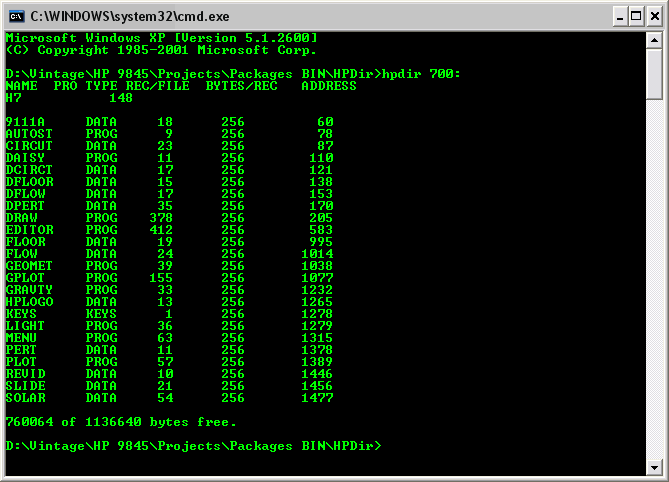
Sample Directory Listing of an HP 9845 File System
In order to enable even more general application, LIF is supported in addition to the HP 9845 file system format, and the CS/80 and SS/80 command sets are supported in addition the the AMIGO command set. All functions available for the HP 9845 file system and AMIGO based HP-IB drives are also applicable to LIF file systems and CS/80 or SS/80 based peripherals. With the latest version, there now also is limited support for SDF (read-only, no extents in the inode table).
HPDir comes in two flavors. One is a console application running under 32-bit-Windows. The other is provided for working with a common graphical user interface via two different plugins for the well-known Total Commander file manager: a WCX packer plugin and a WFX file system plugin. The packer plugin is useful for working with binary image files only, and is very similar to the use of e.g. ZIP archives. The file system plugin supports the full range of media, including binary image files, drives connected via HP-IB and vintage floppy disk media in the standard PC floppy disk drive, and it has some additional features, like setting file attributes.
System Requirements
HPDir should work under all 32-bit Windows versions (9x/ME/NT/2000/XP/Vista/Windows7/8/10). 64-bit versions of Windows 7 and newer need special handling since the custom driver lacks a signature which is officially approved by Microsoft. See the README which is included in the distribution if you need to use that driver. Note that support for Windows 9x/ME is for ISA GPIB boards only, there is no PCI or PCMCIA driver provided for those operating systems.
Recently added is also support for Linux, which should work for ISA cards on any 32-bit or 64-bit distribution such as Fedora, RHEL, Debian or Ubuntu for ISA cards. Please consult the README file which is included in the download package on details how to install and use the Linux versions. There is preliminary support also for NI's PCI-GPIB based on the Linux GPIB Library. There is a patch included to build that library on your own for use with HPDir and HPDrive. The support is very alpha yet, and many things do not work as they should.
Direct floppy disk access will work with the majority of standard floppy disk drives as long as the form factor matches. In some (rare) cases, however, the installed floppy hardware may not be able to read non-DOS disks. In those cases, HPDir also will not be able to read them. There is no support for floppy disk access under Linux yet.
For IEEE488/GPIB boards currently supported see the following table:
| API's and Chipsets | Boards successfully tested with HPDir | Boards which should work with HPDir but have not yet been tested | Boards which are known not to work with HPDir |
| NI 488.2 | NI PCI-GPIB (large board with TNT4882C) NI PCI-GPIB (small board with TNT5004) NI-PCI-GPIB+ (board with analyzer option) NI PCIe-GPIB (PCI Express board) |
All boards supported by NI's standard NI 488.2 driver (current version 2.7.1, use 2.2.4 for Windows 98/ME): 1) no Vista support |
|
| Custom TNT4882/ TNT5004 Driver | NI PCI-GPIB (large board with TNT4882C) |
||
| Custom PCMCIA GPIB/GPIB+ Driver | NI PCMCIA-GPIB (PC Card with TNT4882) |
||
| NEC µPD7210 | NI GPIB-PCIIA | All PCII/IIA compatible boards | |
| TI TMS9914A | Ziatech 9914/9914A | All TMS9914 compatible ISA boards | |
| NI NAT4882 | NI AT-GPIB | ||
| NI TNT4882C | NI AT-GPIB/TNT, NI AT-GPIB/TNT PnP |
Note that due to different capabilities of those boards, hardware which don't work with HPDir may work with HPDrive and vice versa (see the HPDrive section for details). Also note that HPDrive in particular doesn't support the NI 488.2 API and the NI 488.2 driver cannot coexist with the custom TNT4882 driver on the same machine.
If you make your own experience with IEEE488/GPIB boards and HPDir, please send me your reports with the contact feature, and I'll include your results in the above list.
HPDir directly accesses the hardware registers, so be careful in using multiple instances of HPDir on the same GPIB hardware or in using other drivers in parallel.
Getting Started
No special installation is required for using HPDir within Windows 9x/ME. The same
applies within Windows NT/2000/XP/Vista/Windows7/8/10 if HPDir is used with image files
only.
Operations on HPIB drives need (of course) a GPIB/IEEE488 interface board.
Drivers
HPDir needs additional drivers installed in the following cases:
- If you are running HPDir under Windows NT/2000/XP/Vista/Windows7, AND you are using an ISA GPIB board (such as a NI GPIBII/IIA) with HPDir, please install the Custom PortIO driver package before use.
- If you are using HPDir with an arbitrary standard NI 488.2 compatible board, please make sure the standard NI 488.2 driver which comes with your board is properly installed.
- If you are using HPDir in combination with a TNT4882C or TNT5004 based PCI-GPIB board, please make sure either the standard NI 488.2 driver OR the custom TNT4882/TNT5004 driver is installed (note that another utility, HPDrive, won't support the NI 488.2 driver, so if you want to use both utilities, the custom TNT4882/TNT5004 driver is recommended instead of the NI 488.2 standard driver). Same applies to the custom PCMCIA GPIB/GPIB+ driver.
- If you are planning to use HPDir with direct floppy disk access
under Windows NT/2000/XP/Vista/Windows7/8/10, please install the FDRAWCMD driver
before use.
In all other cases, HPDir will run without any additional drivers.
The standard NI 488.2 driver normally comes with the National Instruments boards. The latest NI 488.2 driver can be obtained from NI's web site www.ni.com.
The FDRAWCMD driver is part of the HPDir distribution package. The custom PortIO driver and the custom TNT4882/TNT5004 driver can be downloaded from this page (see the HPDrive section or the README files included in the download packages for installation instructions).
If you plan to use Linux, please consult the instructions provided by the README files which are included in the download package. Please note that floppy drive access is not yet supported under Linux.
Hardware configuration
You can check for compatible IEEE488/GPIB hardware by executing
hpdir -scan
within a console window from the directory where hpdir.exe resides. If this won't show any boards HPDir can work with although your board is listed as supported in the above table (see section System Requirements), there might be besome additional configuration required for you board.
PCI or PCMCIA based hardware in general doesn't need special configuration (they are 'plug-and-play'). If you are using an ISA board, please please set the boards I/O base address as follows:
| Board Type | I/O base address |
| NI PCIIA and compatibles (NEC µPD7210 or NAT4882) | 02E1 (default) |
| NI PCII and compatibles (NEC µPD7210 or NAT4882) | 02B8 (default) |
| NI AT-GPIB and compatibles (NAT4882) | 02C0 (default) |
| NI AT-GPIB/TNT and compatibles (TNT4882) | 02C0 (default) |
If required, use the -port option for setting the base address manually.
Example:
hpdir -scan -port 0x3e0
tests for compatible boards on base address 03E0.
Please note that NI's PnP ISA boards like the AT-GPIB/TNT PnP are configured by the OS in combination with NI's own NI-488.2 driver (rather than by jumper or DIP-switch). So for configuring the board to one of the addresses shown above, you first have to install NI's NI-488.2 software (I am using version 1.70 which at least supports Windows up to XP), then go to the Windows device manager, select the NI PnP hardware, uncheck "Automatic Configuration" and select a resource setup with the I/O address of your choice (ideally one of the defaults in the table above). You can keep the NI-488.2 software installed, since HPDir does not interfere with NI's driver (unless you are performing e.g. data acquisition with NI's software in parallel to running HPDir).
Interrupt and DMA setting are of no relevance for the HPDir program, however you should make sure both interrupt and DMA settings do not conflict with other hardware installed in your system.
Some boards like the NI PCII/PCIIA should be configured into 7210 mode manually before use. For example, some PCII/PCIIA boards support both 7210 and 9914 mode, to configure those boards into 7210 mode, set switch #8 on the DIP-switch to the ON-position (=position 1). For other boards, consult the documentation delivered with those boards.
If your board offers the choice for operating as device or system controller, chose 'system controller' for using HPDir (ability for acting as system controller is prerequisite for using HPDir).
Configuration
HPDir can be widely configured with a larger number of command line options (see the following sections for details). If you need a permanent change in configuration, you can provide a configuration file hpdir.ini to HPDir. When invoked, HPDir first looks for this configuration file in the current directory, and then in the directory where the hpdir.exe executable resides. If found, the settings in this file are applied. Since precedence of command line options ist higher than those of the configuration file, config file settings can still be overwritten by using command line options.
The configuration file is also useful for defining new media types for which there is no built-in support by simply adding your own media definitions in this file. Furthermore, you may define your own custom file types and associate them with a 16-bit identifier (useful for the calculator area, where there is a huge number of file types not covered by HPDir).
See the sample hpdir.ini file provided with the HPDir package for details on the configuration options available with examples. Use the hpdir -info command for assistance.
HPDir also can use an Fdio configuration file for configuring direct floppy access if present. See the Fdio Project for more information.
Using Binary Image Files
Binary images as used by the HPDir and the HPDrive program are quite generic. They are just 1:1 images from the records on the media they represent, just as they are produced with the UNIX dd command. So each image file has exactly the same size as the overall sector or track data on the disk or tape they are created from. The binary images contain no information about the source medium, especially nothing about the original drive geometry (sector size, sectors/track, sector interleave etc.). Binary images are just a linear collection of 256-bytes-records, starting at record 0.
This is exactly the view of the HP 9845 operating system unified mass storage concept, and makes it easy to abstract from the original drive hardware. The suggested Windows filename extension is .hpi (for HP image).
The source selector (msus) for image files is just a reference to the image file path, preferably but not necessarily with the extension .hpi, e.g.:
hpdir c:\tmp\image.hpi
lists the file content of the image file c:\tmp\image.hpi.
Using the HP-IB
HPDir can also be used for accessing drives connected to the PC via GPIB/HP-IB. This requires a compatible IEEE488/GPIB card (see "Supported IEEE488/GPIB Cards" below). The way the HP-IB drive is connected has to conform to the IEEE-488 rules for cable length and cable stacking. The IEEE488/GPIB interface in the PC has to be configured as system controller in order to play the role of the host system.
The following steps all have to be executed in a console window from the directory where your hpdir.exe resides.
You can check for compatible IEEE488/GPIB hardware by executing
hpdir -scan
Mass storage devices should generally be configured to a GPIB primary address between 0 and 7, and up to 10 units are supported for each device, and each unit can hold up to 8 volumes. The source selector (msus) for an HP-IB device is of the form
7xx[y[z]]:
where the first digit is the controller number (always 7), the next two digits (xx) are the primary address of the HP-IB drive, followed by the optional unit (y) and volume numbers (z). The brackets just identify optional parts of the msus.
A list of the peripherals currently connected to the GPIB can be obtained by executing
hpdir -query
The connection to a specific HP-IB drive can be initially checked with the diagnostic feature of HPDir. If the tested drive has the GPIB primary address 0, execute
hpdir -diag 700:
and select the first entry "GPIB diagnostics (loopback test)" from the menu, then just press ENTER to use the default value for the loop count. HPDir will now send data over the GPIB to the drive, receive a copy and compare it to the original data sent. In case errors orccur during this operation, HPDir will give an appropriate error message.
If everything works fine, just quit the menu, insert a valid medium in the HP-IB drive and execute
hpdir 700:
which lists the content of the storage (assuming the address of the drive is 0 and there is an already initialized file system on the medium).
There are some HPDir commands which are only used in combination with HP-IB drives, but not with images or the with the standard PC floppy drive:
| hpdir -clear <msus> | sends a Selected Device Clear (SDC) message followed by an AMIGO Clear to the device. Use "7:" as <msus> to send an Universal Device Clear (DCL) to the whole bus. |
| hpdir -unload <msus> | sends a command to the device to eject the loaded media (if applicable) |
| hpdir -query | looks for all devices currently connected to the GPIB |
Using Floppy Disks
Sometimes there is the need for handling original floppy disks, maybe because there is no suitable vintage drive hardware available, or there is no possibility to connect to the drive via GPIB. Generally, the use of vintage media as long-term storage is deprecated, since no one knows how long those media will work error-free. In order to archive floppy contents, at least an image should be created, but in principle, HPDir offers for floppy disks the same functionality as for binary images and HP-IB drives.
HP used a floppy sector format which is not supported by DOS or Windows. If you try to access such a vintage disk within DOS or Windows, you'll get an error message accordingly. Although many standard PC floppy disk drives can be tuned to read even those non-standard formats by directly programming the floppy disk controller (direct floppy disk access), there is no guarantee that it works with your specific drive hardware.
The source selector (msus) for direct floppy disk access is of the form
X:
where X is any digit between 0 and 3. 0 addresses the first drive (normally mapped to DOS or Windows drive A:), 1 the second drive (mapped to B:) and so on. Example:
hpdir 0:
tries to access the first floppy drive and then lists the directory content of the floppy disk in this drive. Note that "hpdir A:" will not work, since A: as DOS/Windows drive identifier is reserved for specification of a binary image file path.
The functions for direct floppy disk access are borrowed from another utility, the Fdio program (see the Fdio Project). If you run into problems, use the more comprehensive options or the troubleshooting procedures of the Fdio program. In general, HPDir will try to determine the floppy disk format automatically. If this automatic detection should fail and you are sure about the specific floppy disk format, you can use the Fdio utility to create an image which then can be used by HPDir. With Fdio, you can specifiy the format either from a number of presets or by setting the media parameters manually.
Please note that floppy drive access is not yet supported under Linux.
Using the Total Commander Plugins
There are two plugins available for the popular Total Commander, a powerful replacement of the Windows Explorer. The plugins are intended for those who prefer a graphical user interface over console applications with their command line options or who just want to use the highly productive features of the Total Commander.
Total Commander is a shareware file manager for Windows 9x up to latest versions of Windows (even runs under Windows 3.1) and can be downloaded here.
There are two different types of plugins. The packer plugin allows access to a binary image file in a way very similar to ZIP archives or ISO CD-ROM images. Binary images as used with HPDir or HPDrive schould have the file name extension .hpi in order to activate the right packer plugin. The file system plugin allows access to whole HP 9845 or LIF file systems via the network neighborhood. You should install both plugins and use them as appropriate.
Please note that the HPDir plugins work on file system level only. It is possible to list, copy, move etc. files, but not to create image files or to write them back to a device. Please use the command line (see next section below) for such kind of operation.
The installation of the HPDirwcx plugin is like for many other Total Commander packer plugins:
- Open the file hpdirwcx.zip or hpdirwcx64.zip with Total Commander, depending on whether you use the 32-bit version or 64-bit version of Total Commander
- Confirm the dialog asking "Do you want to install it?" with "Yes"
- Confirm the Associate dialog with "OK"
Now the plugin is ready to use and you can open any file with extension
.hpi with Total Commander.
And here is how to install the HPDir file system plugin:
- Open the file hpdirwfx.zip or hpdirwfx64.zip with Total Commander, depending on whether you use the 32-bit version or 64-bit version of Total Commander
- Confirm the dialog asking "Do you want to install it?" with "Yes"
- Confirm the File system plugins dialog with "OK"
Now the plugin is ready to use and you can open either an image file
(should by convention have extension .hpi), a floppy disk or a
HP-IB device by selecting HPDIR the Network Neighborhood.
The packer plugin is normally activated by just opening a binary image file with extension .hpi with Total Commander. Total Commander will then show the directory content of this image and allows you to apply the known Total Commander file operations like copying files to and from the image, view or delete individual files or edit them with your favorite editor.
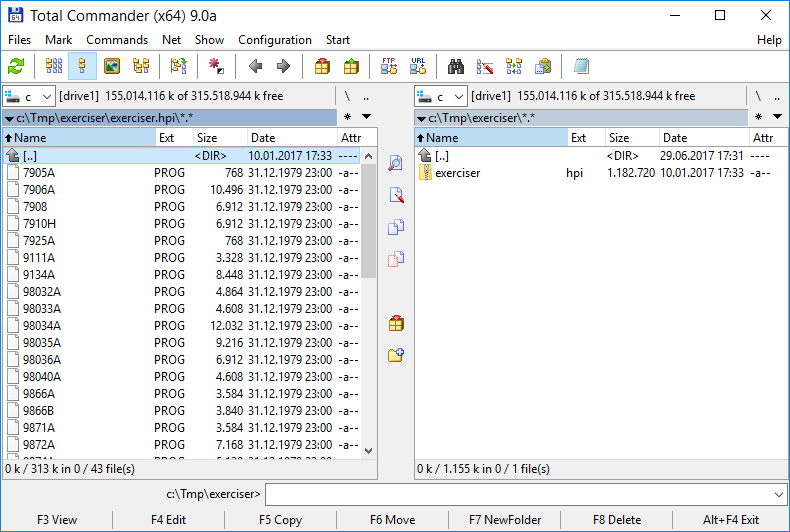
Total Commander with HPDir Packer Plugin
In order to preserve the original HP 9845 or LIF file type, appropriate extensions will be appended to the original file name when showing the content of the image file. So if there is a file TEST of type DATA, it will be listed in Total Commander as TEST.DATA (in the example above which is taken from the first HP 9845 System Exerciser tape, REvid4 is of type DATA, TAPE of type PROG and the binary program MEMTST of type BPRG). When extracted from an image, this file name extension is added to the original file name.
Vice versa, when copying a Windows file into an image, known file type extensions are used to set the right file type in the image and stripped accordingly. Also note that if a file has another defined record size than the standard 256 bytes, the defined record size is added just before the typed extension with an ampersand ('&') as prefix. (in the example above, the files DATA1 to DATA5 have a defined record size of 128 bytes, and the file DIRECT has a defined record size of 10 bytes, all other files have the standard defined record size of 256 bytes).
The file system plugin works much the same as the packer plugins. However, with the file system plugin you can also change the file attributes like creation/change time (LIF only) and protection, and you can activate or deactivate automatic file type conversion and the use of file name extensions for the preservation of 9845 or LIF file types. More important, the file system plugin works not only on binary image files, but can be addressed to any valid source selector (msus), which includes drives connected via HP-IB and direct floppy disk access.
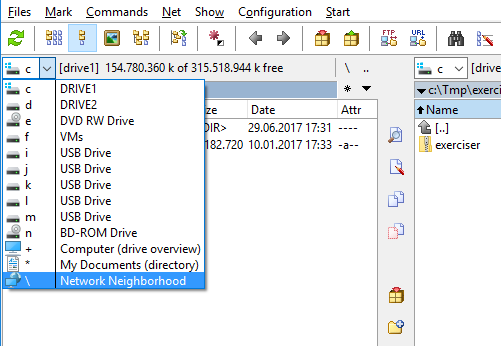
Selecting the HPDir Filesystem Plugin in Total Commander via Network Neighborhood
The file system plugin is activated by first chosing the network neighborhood from the Total Commander drive selector, and then selecting the HPDIR plugin.
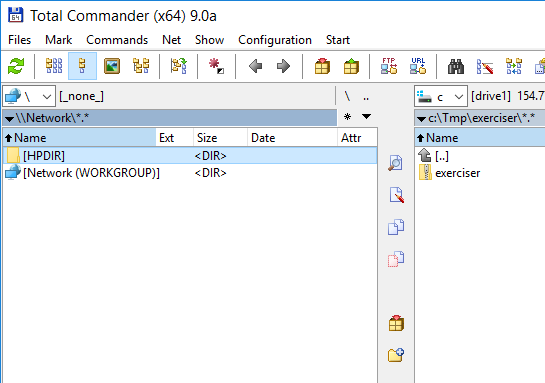
HPDIR WFX Plugin
A small dialog then asks you for the source selector/msus (which is the same as for the console version of HPDir). You can enter either the path of an image file (as it is done in the example below), or a direct access floppy disk drive (e.g. with "0:" for the first drive), or a mass storage device connected via HP-IB/GPIB (e.g. with "701:" for the device with GPIB address 1).
In this dialog, you can also specify whether typed file name extensions shall be used, whether automatic file conversion is switched on or off, whether purged files (=files which are marked as deleted) shall be shown, and whether file headers suitable for HPBasic/HTBasic or for HP calculators shall be used.
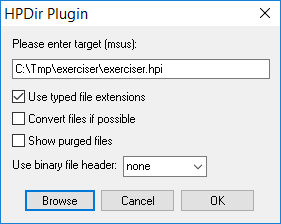
HPDir Filesystem Plugin Dialog
Automatic file conversion looks each time a copy is done to or from a 9845 or LIF file system, whether the file type is convertable to or from plain text format or not. If it is convertable (which is currently the case for 9845 DATA files and LIF ASCII files), the file content is translated to and from standard Windows text format. So it is for example possible to edit 9845 BASIC programs on a PC as text file and write them back into the original DATA format automatically (transparent use of 9845 or LIF files). See the -c command line option in the command line usage description below for details on conversion.
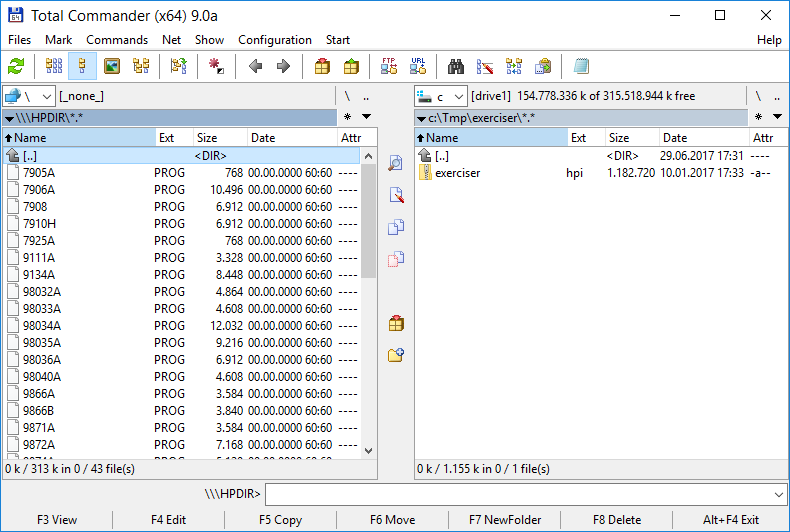
HPDir Filesystem Plugin View
Finally the filesystem plugin's view in the Total Commander is pretty close to that of the packer plugin. Note that it is now possible to connect also to remote HP-IB drives, to set the file attributes and to use automatic file content conversion (e.g. converting HP 9845 DATA files such as BASIC program listings towards normal Windows text files and vice versa).
If you need to change the file system plugin settings, simply click & hold HPDIR in the Network Neighborhood with the right mouse button, and select Properties.
Please note that the Total Commander WCX and WFX Plugins both operate on file level. See the next section on how to use the whole functionality of HPDir beyond the plugins, including creating, duplicating and initializing of whole media, file systems or images.
Using the Command Line Interface
The console version of HPDir with its command line options is a little bit more complex than the plugins described above, but it also offers many more options. Under Windows 9x/ME HPDir is run in a command shell, under Windows NT/2000/XP/Vista/Windows7/8/10 in a cmd shell. All functions are completely identical under both Windows types.
Rather than providing a separate executable for each HPDir operation (as e.g. DOS does), all commands are implemented in one single executable and can be executed in the form
hpdir <command>
If the <command> specifier is omitted, HPDir uses the -list command as default.
Typically, you can use HPDir either with image files, internal floppy discs, or with mass storage devices connected via GPIB bus. All HPDir commands need a supported target file system or device to work on. Supported are primarily either the HP 9845 file system or the LIF file system. The target file system or device is specified with a source selector (msus). If the source selector is omitted, HPDir asks for the msus interactively. There are thre different types of selector, one for binary image files, one for direct floppy disk access, and one for drives connected via GPIB:
hpdir <command> <image_selector>
hpdir <command> <fd_selector>
hpdir <command> <gpib_selector>
The binary image selector is just the Windows path to the appropriate image file.
The selector for direct floppy disk access <fd_selector> is a single digit for the drive number which shall be used. Drive 0 refers to Windows drive A:, drive 1 to Windows drive B: and so on.
The selector for drives connected via GPIB consists of a GPIB board identifier (always 7), a two-digit identifier for the primary GPIB address of the device, and, optionally, the selected unit and volume, with one digit each. If unit and/or volume are omitted, they default to unit 0 volume 0.
Both the <fd_selector> and the <gpib_selector> are terminated with a colon (':').
Examples are:
hpdir c:\temp\image.hpi
lists the directory content of the binary image file c:\temp\image.hpi.
hpdir 0:
lists the directory content of the floppy in the first disk drive.
hpdir 70012:
lists the directory content of the GPIB device with the primary address 0, the unit 1 and the volume 2.
In case you like to create an image from a real device, you can use the -dup command to do so, such as
hpdir -dup 700: myimage.hpi
You then can use HPDir on the image file just like the real disk. Take care not to confuse the order of source and target descriptor, otherwise your hard disk may be accidentially erased.
Below is a summary of all commands. Execute HPDir with the -h option for a summary. Also have a look into the README file for up-to-date information.
| Command | Description |
| -list <msus> [<filespec>] | Generate a directory listing from the selected source. For HP 9845 file system, the output is the same as for a HP 9845 host system. For LIF file systems, the SRM directory listing format is used. This command is also assumed as default if no command is specified at all. |
| -extract <msus> [<filespec>] | Extract file(s) from file system. If a file already exists, the user is interactively asked for overwrite. An existing file will automatically be overwritten if the -y option is used. |
| -add <msus> [<filespec>] | Adds file(s) to file system. If a file already exists, the user is interactively asked for overwrite. An existing file will automatically be overwritten if the -y option is used. Please note that the file type for newly added files is DATA by default. if you want to give the file another file type, either add .<type> in uppercase to the filename (e.g. myfile.PROG or myfile.KEYS) or specify the type separately using the -t option. Please also note that 9825 files have to be defined using the corresponding 9845 file types (e.g. PROG instead of P). |
| -remove <msus> [<filespec>] | Removes file(s) from file system (doesn't care whether file have the protected attribute or not) |
| -copy <msus> <filespec> <target> | Copies file(s) within a file system. If a file already exists, the user is interactively asked for overwrite. An existing file will automatically be overwritten if the -y option is used. Note that -copy can't be used to copy files between two different filesystems or media or between Windows and another file system (use -add or -extract instead). |
| -attrib <msus> [<filespec>] | Sets attributes for a file. Possible attributes are protection, system and file type (see the -s and -t options). Setting file creation time is LIF specific and currently not supported. |
| -rename <msus> <filespec> <target> | Renames one single file or moves one or more file(s) to another location. <target> specifies either the new filename or an existing target location (directory or msus). |
| -create <msus> <file> <size> | Creates one file of size <size>. Size is measured in blocks, so the actual file size in bytes depends from the blocksize used (see -b option). |
| -initialize <msus> | Creates a new file system on the specified image or device. The appropriate file system type can be specified with the -lif, -disk45 or -tape45 options. Default file system is the HP 9845 disk file system. All existing file data will be overwritten. If an image file is specified which does not yet exist, it will be automatically created. So the -initialize option is the perfect way to create initialized images with one single step. |
| -format <msus> | Performs a low-level format of the selected media. Images and floppy disks will be zero'ed. The effect on HP-IB drives depends on the drive itself. Generally, factory-new media must be formatted before a file system can be created on the disk or tape. All existing file data will definitely be overwritten. |
| -info <msus> | Outputs detailed information about the selected image or device including the currently loaded media. For setting up your own drive presets in both HPDir and HPDrive config files, drive data is also provided as suggested preset strings for use in hpdir.ini and hpdrive.ini, which then can be tuned to your needs. |
| -clear <msus> | Sends a GPIB clear command to the device. |
| -unload <msus> | Sends the appropriate command for ejecting a currently loaded disk or tape. |
| -diag <msus> | Opens a menu for device, media and GPIB diagnostics. I call them 'mini-diags'. Helpful for problem identification in case of failures. |
| -defrag <msus> | Rearranges the files in a file system so that intermediate free storage areas are eliminated and the files are 'packed' closely together in order to gain more space on the medium. All file information and data will be preserved. On HP-IB/GPIB drives this operation may take several minutes. |
| -check <msus> | Tests the file system for consistancy for diagnostic purposes. |
| -dup <msus> <target> | Creates a 1:1 copy of an existing file system, just like the UNIX dd command. Can be used to produce hpi images from media, restore media from images, or to make identical image and media copies. The media of the target msus must be at least as large as that from the source msus. Even works with CS/80 tape drives. If you need to make a 1:1 copy from floppy disks at media level (low level sector copy), use the Fdio utility. Any error during the copy process will abort the duplication. Use the -nostream option to produce duplication of partly defective source media. |
| -recover | Like -dup, but does a blockwise media recovery to an already existing target (only the specified blocks are read from the source and exchanged in the target image, all other blocks remain untouched, see -r option below). Simplifies re-reads on spurious read errors.* |
| -convert <msus> <target> | Very much the same as the -dup command, but allows to change the target file system with the -lif, -disk45 and -tape45 options. Can be used to convert one file system type into another, e.g. tape45 format into disk45 format. Also supports conversion of one media type into another (e.g. an 82901 image into a 9895A image). Note that unless -lif or -tape45 options are used, target file system is always disk45. Can also be used to resize images with the-<media> or -g option. |
| -presets | Lists the built-in presets for media formats. Used for -<mediatype> option. |
| -scan | Checks installed IEEE488/GPIB hardware for compatibility with HPDir |
| -query | Scans all possible primary GPIB addresses (0-30) on the GPIB bus for currently connected devices. Useful to see which devices are connected and whether they are supported by the HPDir utility. |
| -license | Show license info. |
*New in version 3.0 RC1
Where <msus> is one of <image_selector>, <fd_selector> or <gpib_selector> (see above description) and <filespec> generally stands for one or more filenames, including wildcards. Note that filespecs with wildcards have to be enclosed in double quotes, otherwise they will be expanded by the shell. Also note that 9845 and sometimes LIF filenames are case sensitive and that the asterisk '*' is a valid part of a filename for 9845 or LIF files. Use the -nowc option below if asterisks are to be used in filenames.
Most commands can be tailored with one or more option. Below is a summary of all available options with reference to the commands they work with. Again, execute HPDir with the -h option for a summary. Also have a look into the README file for up-to-date information.
| Option | Description |
| -h | Output a summary of the command line options. |
| -a <address> | Select the primary GPIB address for the controller (default 21). Must be between 0 and 31. |
| -b <blocksize> | Specifiy the blocksize for a file (default 256). Applies to -add, -attribute and -create. |
| -c | Enables automatic file conversion between HP format and DOS/Windows format. Currently, conversion of DATA and ASCII files is supported in both directions. Default is no conversion (copy binary data without change). Conversion from DOS/Windows text format does assume all input as string data, whereas conversion from DATA format to DOS/Windows text format converts also integer and floating point data. Line breaks are converted to CR+LF, and special HP 9845 characters above ASCII code 127 (such as line drawing characters) will be mapped as good as possible with the appropriate DOS/Windows counterparts. Certain special control characters (as used for example for screen addressing in programs) of type DATA can't be translated into proper DOS/Windows characters, so check your program first for non-printable characters before doing the conversion. Please note that a DOS/Windows text file requires a suffix of .txt in order to be recognized for conversion. If you omit the suffix, no conversion will be done and a file will be added unchanged. As an example for conversion assume that the file MYFILE.txt is a plain DOS/Windows text file. In order to convert it to a file of 9845 type DATA, first rename it to MYFILE.DATA.txt, then use
to first convert and then copy this file as type DATA to <msus>. For later versions of HP BASIC (such as with HP 9000 Series 200/300) use type ASCII instead of DATA. An example for extracting a DATA or ASCII file from an image or drive is
where if MYFILE is of type DATA or ASCII it will be converted and stored as MYFILE.DATA.txt or MYFILE.ASCII.txt. If a file which shall be extracted is of type DATA or ASCII, but contains data which doesn't apply to HP's DATA or ASCII syntax rules you'll get an error message. |
| -d <destination> | Specifiy the target Windows directory or msus for -add and -extract. Default is the current directory or msus. |
| -i <interleave> | Select n:1 interleave factor, applies to -format and -initialize (default depends on the type of disk used) |
| -l <loglevel> | Specifies detail of HPDir's reporting. Possible values are |
| -lf <logfile> | Log all output into <logfile>. On slow systems this option may be faster then console output. |
| -n <label> | Specify disk label, applies to -initialize (LIF format only) |
| -q | Selects quickformat option (i.e. does not perform a possibly time-consuming erase of the whole media surface), applies to -initialize |
| -r <first,last> | Specify range of 256-byte blocks for -dup and -recover (block 0 is the first block on medium)* |
| -s <system> | Specify target system for file. Currently <system> is one of the following for the 9845 file system: "9845" (= HP 9845B/C, this is the default) For LIF, the following system types are supported: "98X6" (= HP 9000 Series 200, this is the default) Note that for LIF only known combinations of file type and system are allowed. For unknown file types, the default system (98X6) will be used. 1Specialty: You may use a 9895A floppy drive to create single sided blank floppies for 9885A with 'hpdir -initialize -9885 -s 9825 <msus>'. HPDir will automatically create a boot area suitable for all 9825 mass storage ROMs. Please note that sleeves for single sided 8" floppy disks have the index hole at another position than double sided disks, so it is not possible to use a double sided disk within a 9885A drive (unless you either exchange the sleeve or punch a second hole into it). This option applies to -initialize, -create, -add and -attribute. Affects system attribute only. |
| -t <filetype> | Specify file type. See the README for the file types currently supported. Use -t #xxxx for directly setting the 16-bit xxxx file type code (system dependent, you have to know what you are doing) |
| -v | Show version info. |
| -y | Don't ask for confirmations (just do it). |
| -all | Recurse through subdirectories (only with SDF)* |
| -aux | Set 6 byte of auxdata for LIF files in combination with -attrib. Example:
Sets the six byte aux data of file SYS_BAS51 in image boot51.hpi to the |
| -lif | Force using the LIF file system |
| -disk45 | Force using the 9845 file system (disk version) |
| -tape45 | Force using the 9845 file system (tape version) |
| -hfs | Use HFS partition instead of LIF partition in case a disk holds both a LIF and a HFS partition* |
| -simh | Use SIMH target format instead of hpi (only with -dup)* |
| -hpbasic | Generate/use HPBasic for DOS/Windows LIF file headers (also works with HTBasic). Makes the use of typed extensions unneccessary, since all meta data is stored in the header.* |
| -hpcalc | Generate/use HP calculator LIF file headers (useful when dealing with HP calculator images)* |
| -break | Break on error (do not try to continue). Only with -dup.* |
| -notype | Disables the automatic use of filename extensions for preserving the file types |
| -noext | Disables use of typed file name extensions* |
| -nopascal | Disables HP Pascal filename encoding* |
| -nowc | Disables the expansion of wildcards in filenames. Useful if file names contain asterisks. |
| -nostream | Disable faster I/O streaming and use sector based I/O instead. Only used for diagnostic purposes or for copying partly defective volumes in combination with -dup. |
| -noparity | Disables generating odd parity for GPIB commands (default is parity enabled) |
| -nosleep | Fastest performance, but also highest system load |
| -fastschedule | Tune system scheduler for better responsiveness (Windows 2000 and later), while still limiting load. Can be a better alternative to -nosleep, especially with multiple GPIB boards installed.* |
| -board <board> | Selects the working board in case more than one compatible IEEE488/GPIB interface is installed. The first board has the number 0. See the -scan option for a list of installed boards. |
| -port <port> | Specifies the I/O port where HPDir should look for a compatible IEEE488/GPIB board. Useful if you are sure the board works with HPDir on a certain port address but the autodetect function fails. |
| -license | Show license info. |
*New in version 3.0 RC1
If you want to create or initialize a file system with HPDir, a 9895A floppy is assumed by default. If you like to chose media for another drive type, you can select the desired drive type with the following options (use 'hpdir -presets' for a list of supported media types):
| -<mediatype> | use <mediatype> media format (default is 9895A floppy disk drive format). |
| -g <c,h,s> | Specifiy custom disk geometry parameters manually (overrides autodetect) with the following parameters: c: cylinders per disk |
Downloads
Click here for downloading HPDir (plugins and console version):
| HPDir 3.0 RC1 for Windows 98/ME/NT/2000/XP/Vista/Windows7/8/10/11 (new): | hpdir-30rc1-bin-windows.zip |
| HPDir 3.0 RC1 for 32-bit and 64-bit Linux (new): | hpdir-30rc1-bin-linux.tgz |
| Custom TNT4882/TNT5004 Driver 3.2 for 32-bit and 64-bit Windows XP/Vista/Windows7/8/10/11: | gpibdrv-32.zip |
| Custom PCMCIA GPIB/GPIB+ Driver 1.0 for 32-bit and 64-bit Windows XP/Vista/Windows7/8/10: | pcmcia-gpib-10.zip |
| Custom PortIO Driver 1.0 for 32-bit Windows 2000/XP/Vista/Win7: | portiodrv-10.zip |
This RC1 version may still have bugs. It is recommended to make copies from valuable images you are working on in case something goes wrong. Please use the contact feature to let me know if something doesn't work as expected.
Please also note that the current version uses a component which seems not to be available under Windows 95. That issue is under investigation. If you are have Windows 95, try using the older version below.
The FDRAWCMD driver package is included in the distributions. Please make sure the FDRAWCMD version included in the distribution is used, it has been tested with HPDir and older versions may not work any more.
The PCMCIA driver needs a special version of HPDir and HPDrive which is still under testing. Please use the contact feature and leave me a message if you like to try it.
Here are also the older versions of HPDir (plugins and console version):
| HPDir 2.03 for Windows 9x/ME/NT/2000/XP/Vista/Windows7: | hpdir-203.zip |
| Custom TNT4882/TNT5004 Driver 2.0 for Windows XP/Vista/Windows7: | gpibdrv-20.zip |
Please note that, although non-commercial use is still provided free of charge and distribution is encouraged within the Creative Commons Public License, HPDir is not free software. If you plan to use HPDir within a commercial context, please use the contact feature to ask for commercial conditions.
If you are looking for software to test HPDir with, I recommend a visit to hpmuseum.net. There is much software available, especially for the HP 9845 series. Note that the software there is packaged with Teledisk, an ancient disk image utility. I've written a program which does the transformation from Teledisk images into hpi images for most of the packages available at hpmuseum. See the Software Section on this site for more information.
Troubleshooting
Here are some hints for the most common problems:
| Symptom | Likely Cause | Procedure |
| Supported GPIB Board is installed but not detected | Board is set to the wrong I/O base address (ISA boards only) | Either set the board to a supported I/O base or use the -port option |
| DLPortIO driver is not installed (ISA boards under NT/2000/XP/Vista only) | Install the DLPortIO driver | |
| Custom TNT4882/TNT5004 driver is not installed (PCI boards only) and/or standard NI 488.2 driver still present | If present, uninstall NI 488.2 driver, install the custom TNT4882/TNT5004 driver | |
| Custom PCMCIA GPIB/GPIB+ driver is not installed (NI PCMCIA cards only) and/or standard NI 488.2 driver still present | If present, uninstall NI 488.2 driver, install the custom PCMCIA GPIB/GPIB+ driver | |
| PCI-boards only: You have resumed your system from standby (suspend to RAM or S3 mode) | NI's PCI boards seem to have problems with this mode, simply restart your system | |
| Hardware problem with defect GPIB board | Verify proper GPIB board operation with original vendor software and drivers before trying to use with HPDir | |
| HPDir can't access devices on the bus | IEEE488 cabling restrictions violated | Check your GPIB cabling, connect host and PC exclusively |
| GPIB address duplication | Check for other devices on the bus with equal GPIB address. If necessary, use the -a option | |
| Another system controller is active on the bus | Remove any other hosts from the bus or at least switch them off | |
| There is a conflict with another controller or device | May happen e.g. with a PC-GPIB in combination with a 98034 HP-IB controller on the same bus. In that case, remove the 98034 HP-IB controller temporarily from the bus. Also, a 9895A may disturb accessing a 9121 on the same bus in combination with a PC-GPIB controller. The real cause is still not obvious. | |
| Transmission errors during transfers | Same as above | Same as above. Generally, the GPIB doesn't like devices on the bus which are not switched on. This applies especially for a 9121 drive. You should never connect more than one system controller to the bus, even if only one system controller is switched on. |
If you get a message like this
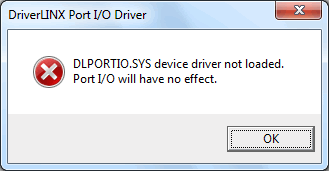
and you want to use an ISA based GPIB board, please install the complete DlPortIO driver package. If you are not using such kind of ISA board, please remove the DLPORTIO.DLL from your windows\system32 directory.
Also check the README in the HPDir package for troubleshooting procedures.
If you can't solve the problem, use the options "-l 4 -lf <logfile>" to create a detailed log of what has happened and sent it to me.